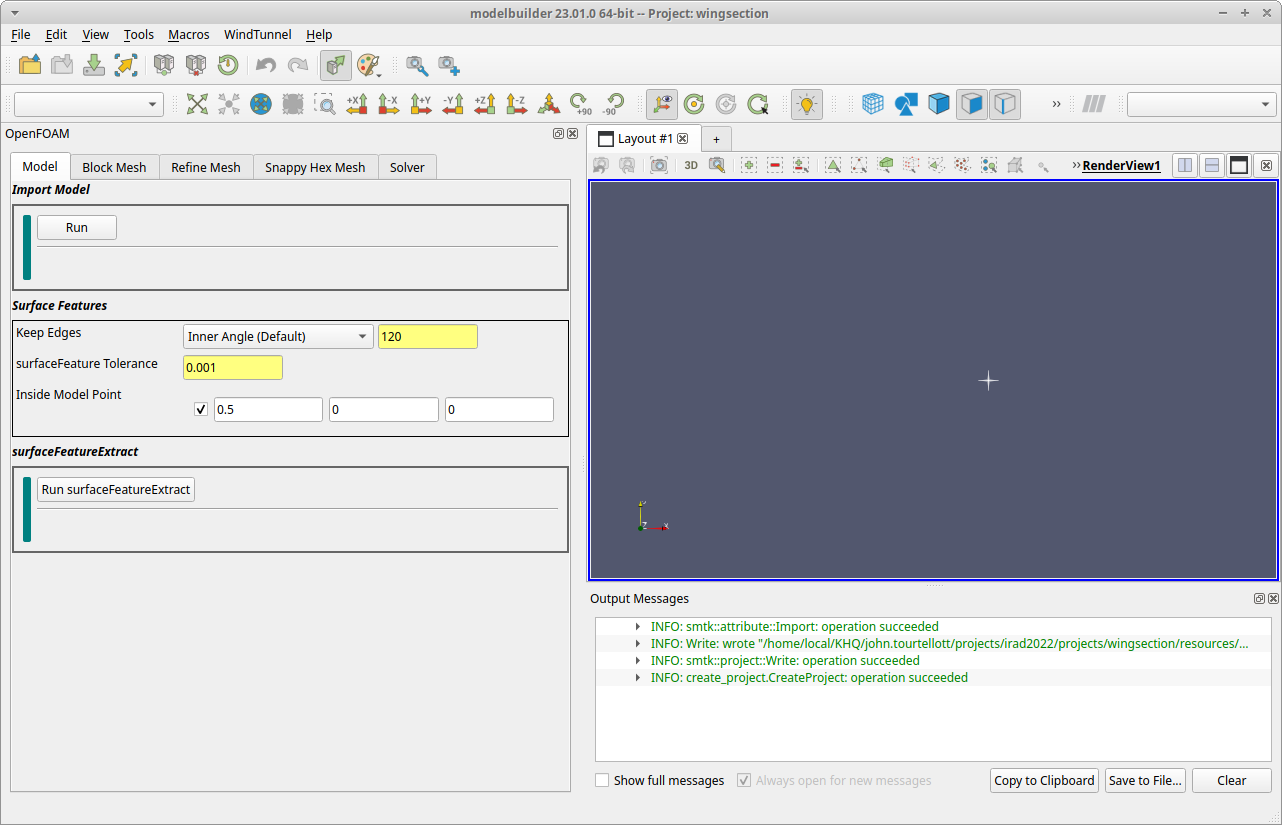
Create a Project
To get started:
Close the current project if there one is in memory. To do this, use the menu item.
Hide the ParaView toolbars by clicking the “Enable ParaView” button (
 ).
).Select the menu item and provide a project directory to the New Project dailog that pops up. A suggested location is
$HOME/modelbuilder/projects/ahmedbody. After creating and selecting the directory, return to the New Project dialog and click the Apply button.

When the dialog closes, modelbuilder creates an empty project and the OpenFOAM dock widget (in the sidebar) and displays a set of tabs for user input. For a quick review:
The Model tab is for importing the model geometry.
The Block Mesh tab is for setting the wind tunnel geometry and generating the initial background mesh.
The Refine Mesh tab is for optionally adding refinement regions to the background mesh.
The Snappy Hex Mesh tab if for generating the analysis mesh.
The Solver tab is for specifying the physics and running the solver.