Import the Target Geometry
For this example, we will again start with the Model tab to import our target geometry and run OpenFOAM’s surfaceFeatureExtract program to detect model edges. We will follow the same basic steps that you did for the wing section example.
1. Download Model File
Download the AhmedBody.stl file using the following link:
AhmedBody.stl (right click on the link and use the “” option)
2. Import Into ModelBuilder
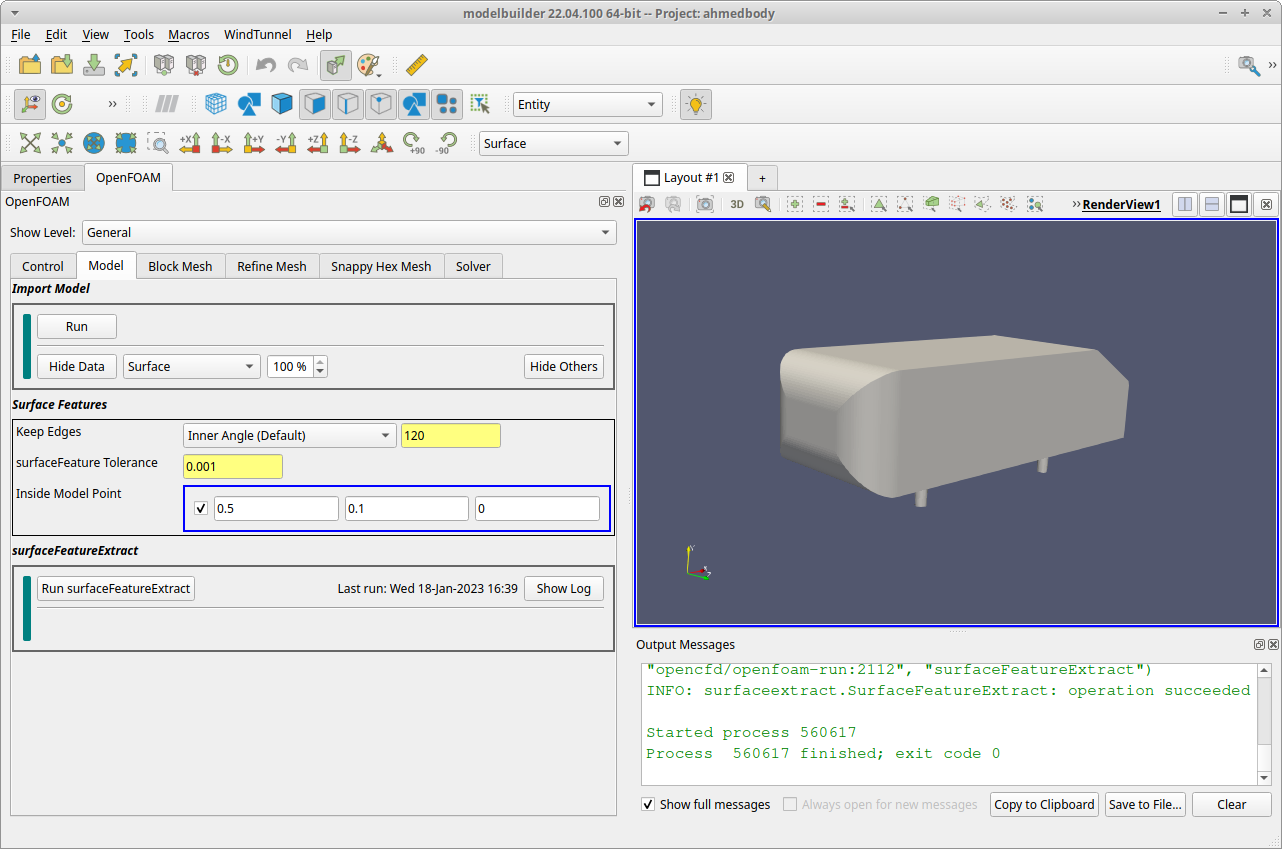
In the Import Model section, click the Run button to bring up the dialog for loading the model file. Click the Browse button and navigate to the AhmedBody.stl file you downloaded. When that is set, click the dialog’s Apply button. In response, modelbuilder will read the file, create an internal representation for the geometry and topology, and display the result in the 3D view.
3. Surface Features
In the Surface Features section, we need to make one edit:
Set the Inside Model Point to 0.5 0.1 0.0
4. Run surfaceFeatureExtract
In the bottom section, click the Run surfaceFeatureExtract button. In response, modelbuilder will set up and launch surfaceFeatureExtract program and display its log file in a popup dialog. The run should only take a few seconds (unless you have not yet loaded the OpenFOAM docker image, which will take minutes).
At this point, the modeling geometry is set up and you can close the log file dialog.
Before moving on, also select the menu item to save the changes to your project so far.
Then proceed to the Block Mesh tab where we will set the wind tunnel geometry.