Import the Target Geometry
We start with the Model, so make sure it is selected. Here is where we will import our target geometry into the project and then run OpenFOAM’s surfaceFeatureExtract program to detect model edges.
Note
You can resize the OpenFOAM panel (dock widget) horizontally to see its full contents by dragging its right side.
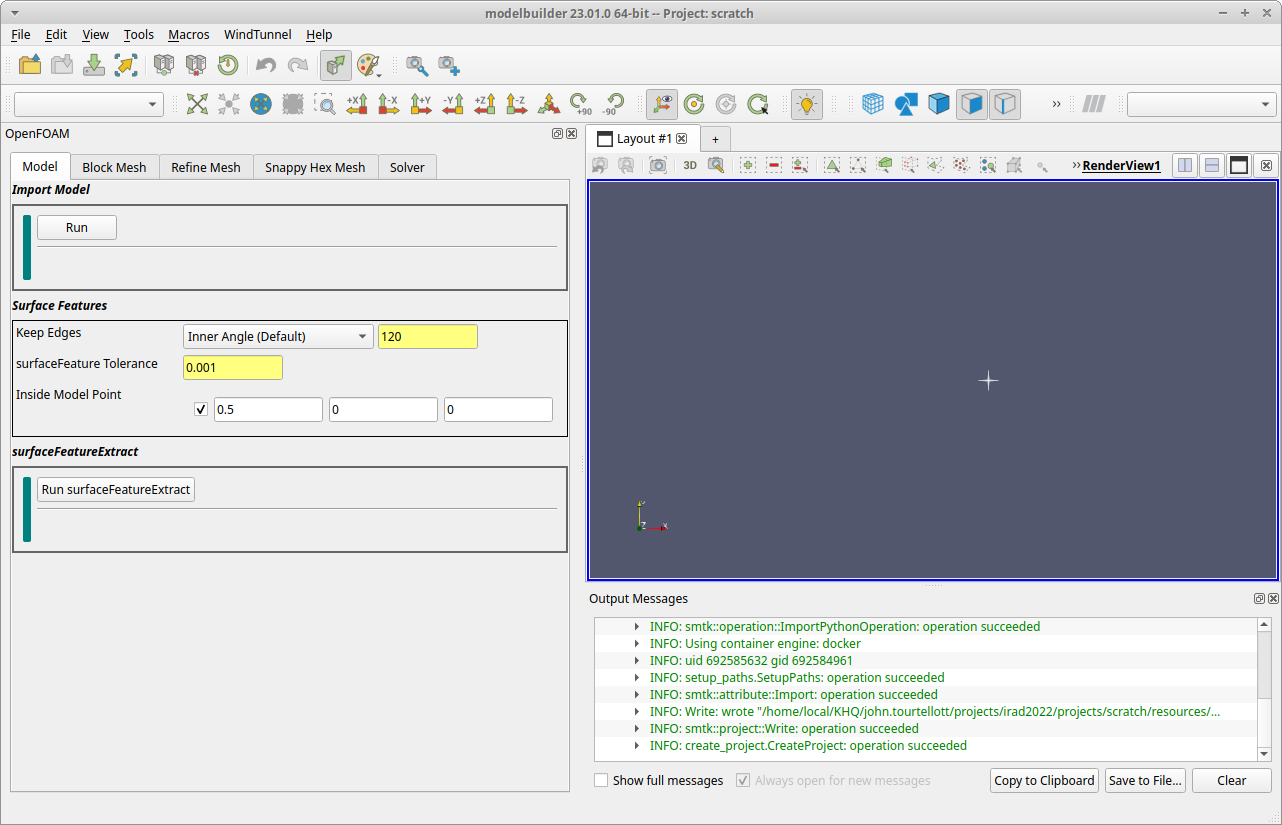
The Model tab is organized vertically in three sections labeled Import Model, Surface Features, and surfaceFeatureExtract. The first and third sections are control views that were added to this version of modelbuilder for running operations. (Control views are indicated by a vertical bar near their left border.) The middle section is an attribute view for editing data that modelbuilder will insert into OpenFOAM input files.
1. Download Model File
We will be using the wing_5degrees.obj file that is including in the OpenFOAM code repository. You can download this file with the following link:
wing_5degrees.obj (right click on the link and use the “” option)
2. Import Into ModelBuilder
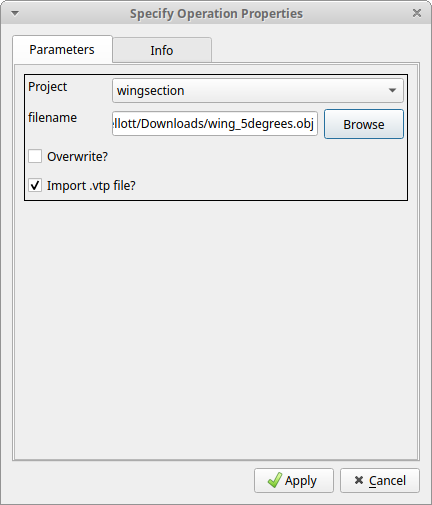
In the Import Model section, click the Run button to bring up a dialog for loading a model file. Click the Browse button to navigate to the wing_5degrees.obj file you downloaded. With that file selected, the dialog should look like the following:
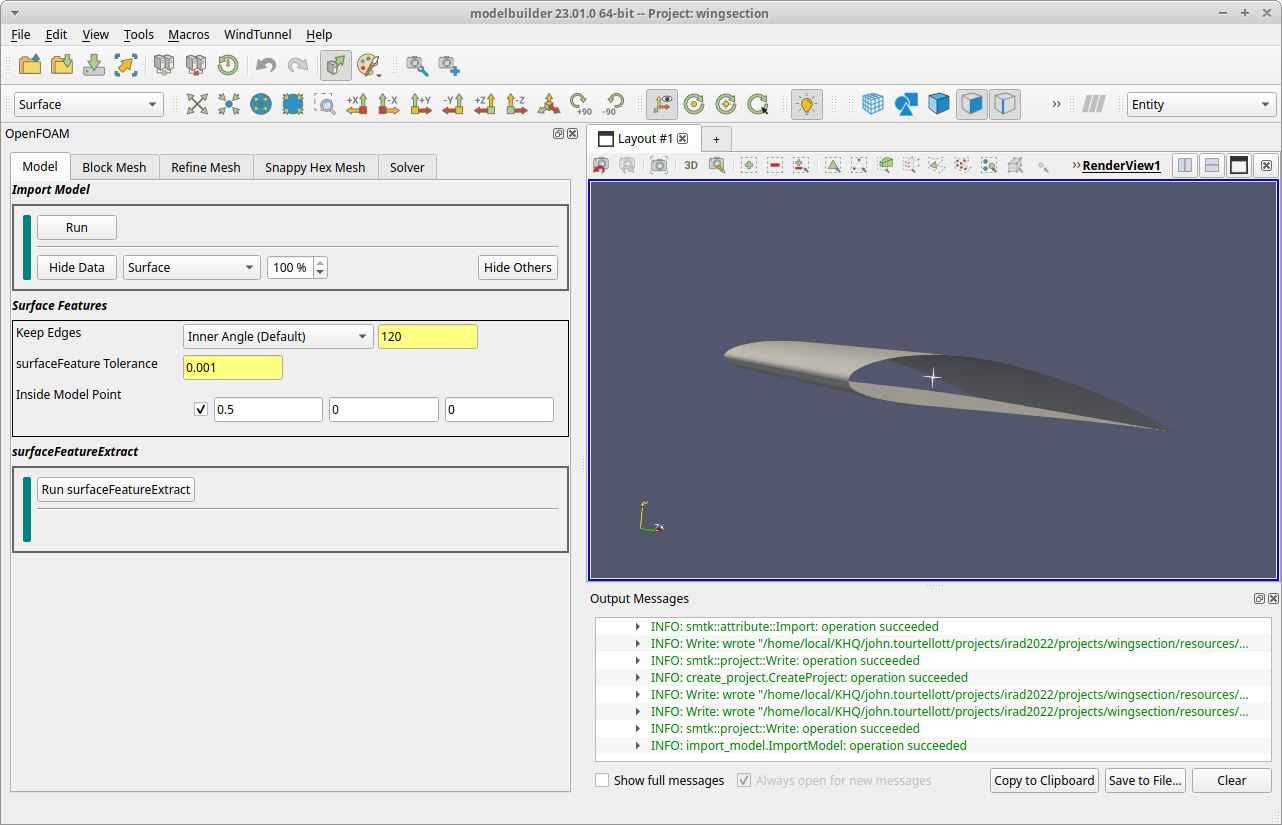
Click the dialog’s Apply button. In response, modelbuilder will read the file, create an internal representation for the geometry and topology, and display the result in the 3D view. The shape is not easily discerned in a static view, but if you manipulate the viewpoint with your mouse (left button to rotate) you will see that its shape is a basic airfoil.
3. Surface Features
The Surface Features section has two purposes, to (i) specify the options used to determine edges to preserve when meshing the geometry, and (ii) specify a point inside the geometry for the meshing software that will be run later.
In this example, the default settings are suitable so you do not have to edit any of the fields.
4. Run surfaceFeatureExtract
The last section in the Model tab is for running the OpenFOAM surfaceFeatureExtract program, which detects features in the input geometry and writes them to the project directory. If you have the OpenFOAM Docker image loaded as described in Installing the software, click the Run surfaceFeatureExtract button. In response, modelbuilder will set up and launch surfaceFeatureExtract program and display its log file in a popup dialog. The run should only take a few seconds (unless you have not yet loaded the OpenFOAM docker image, which will take minutes). The result should look like this.

At this point, the modeling geometry is set up and you can close the log file dialog.
Before moving on, also select the menu item to save the changes to your project so far.
Then proceed to the Block Mesh tab where we will set the wind tunnel geometry.